Steps to Troubleshoot Pairing Issues
If you are having trouble connecting your Sense-U camera, please follow the steps below.
1. Check the Camera's Power and Indicator Light
- Make sure the camera is connected to a power source.
- Wait for the indicator light to flash green before starting the setup process.
2. Check Your Wi-Fi Connection
- Make sure your phone is connected to a 2.4 GHz private Wi-Fi network.
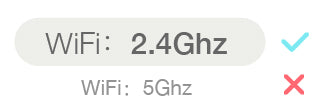
- Public Wi-Fi networks that require you to sign in through a webpage, such as airport Wi-Fi, may not work.
- If your router uses the same network name for both 2.4 GHz and 5 GHz bands, try selecting the 2.4 GHz network separately if possible.
- Double-check that your Wi-Fi password is correct.
3. How to Pair the Camera with the Mobile App
To pair your Sense-U camera with the Sense-U app, follow these steps:
- Download the app: Download the Sense-U app and sign in to your account.
- Check your phone settings: Turn on Bluetooth and connect your phone to a private 2.4 GHz Wi-Fi network. The camera supports 2.4 GHz Wi-Fi only.
- Activate pairing mode: Press and hold the pairing button on the camera until you hear a beep, then release it. Make sure the camera's indicator light is flashing green.
- Add the camera: Open the device setup page in the Sense-U app. When the camera appears, select it and follow the on-screen instructions to complete setup.
4. Reset the Camera and Try Again
If the camera still cannot connect:
- Press and hold the RESET button for approximately 5 seconds, until you hear a beep.
- Open the Sense-U app and start the camera setup process again.
- Follow the on-screen instructions to connect the camera to your Wi-Fi network.
The setup process usually takes about 2 minutes.
5. Troubleshoot the “Unrecognized QR Code” Error
If the app displays an “Unrecognized QR code” error during setup, please try the following steps:
- Check the camera lens: Make sure the lens is clean and unobstructed.
- Improve the lighting: Move to a brighter location and increase your smartphone's screen brightness to the maximum.
- Position the QR code: Hold the QR code displayed in the app approximately 6–8 inches (15–20 cm) in front of the camera lens.
- Adjust the angle and distance: Slowly adjust the position of your phone until you hear a voice prompt from the camera.
If you are using a Wi-Fi 6 router with single network ID (SSID), make sure to unselect "SMART CONNECT" from your router's web interface or app, and then choose the 2G SSID to pair:
(e.g: TP-Link Tether App)
Tips: Where to find Smart Connect for typical routers:
- Tp-Link Wi-Fi 6: https://www.tp-link.com/us/support/faq/2595/
- Netgear Wi-Fi 6: https://kb.netgear.com/25346/
- Amazon Eero - Temporarily pause 5GHz: https://support.eero.com/hc/en-us/articles/115005497223/
- Aus Wi-Fi 6: https://www.asus.com/us/support/FAQ/1012132/
6. Pair the Camera with the Monitor
The camera and monitor are usually paired at the factory, so you may not need to repeat this step.
Not paired? Follow the steps below:
- Open the monitor's Menu.
- Select Camera > Add Camera.
- Select the camera channel you want to use.
- Press the PAIR button on the camera.
- Wait approximately 3–5 seconds for the pairing process to complete.
7. Still Having Trouble?
If the issue persists after trying the steps above, please contact our support team for further assistance.
You can reach us at support@sense-u.com.